DocFX for Unity
DocFX usage example for Unity projects
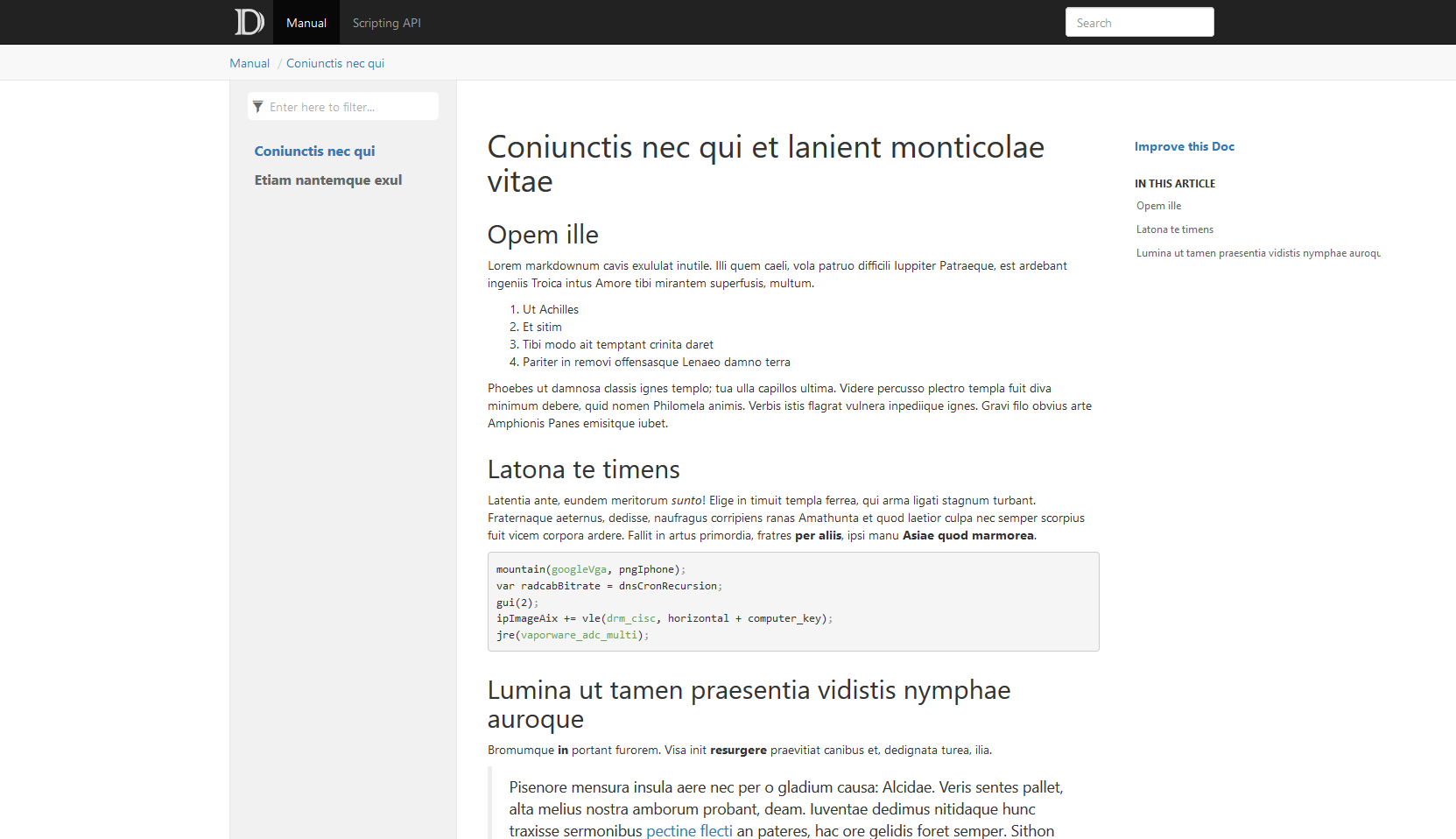
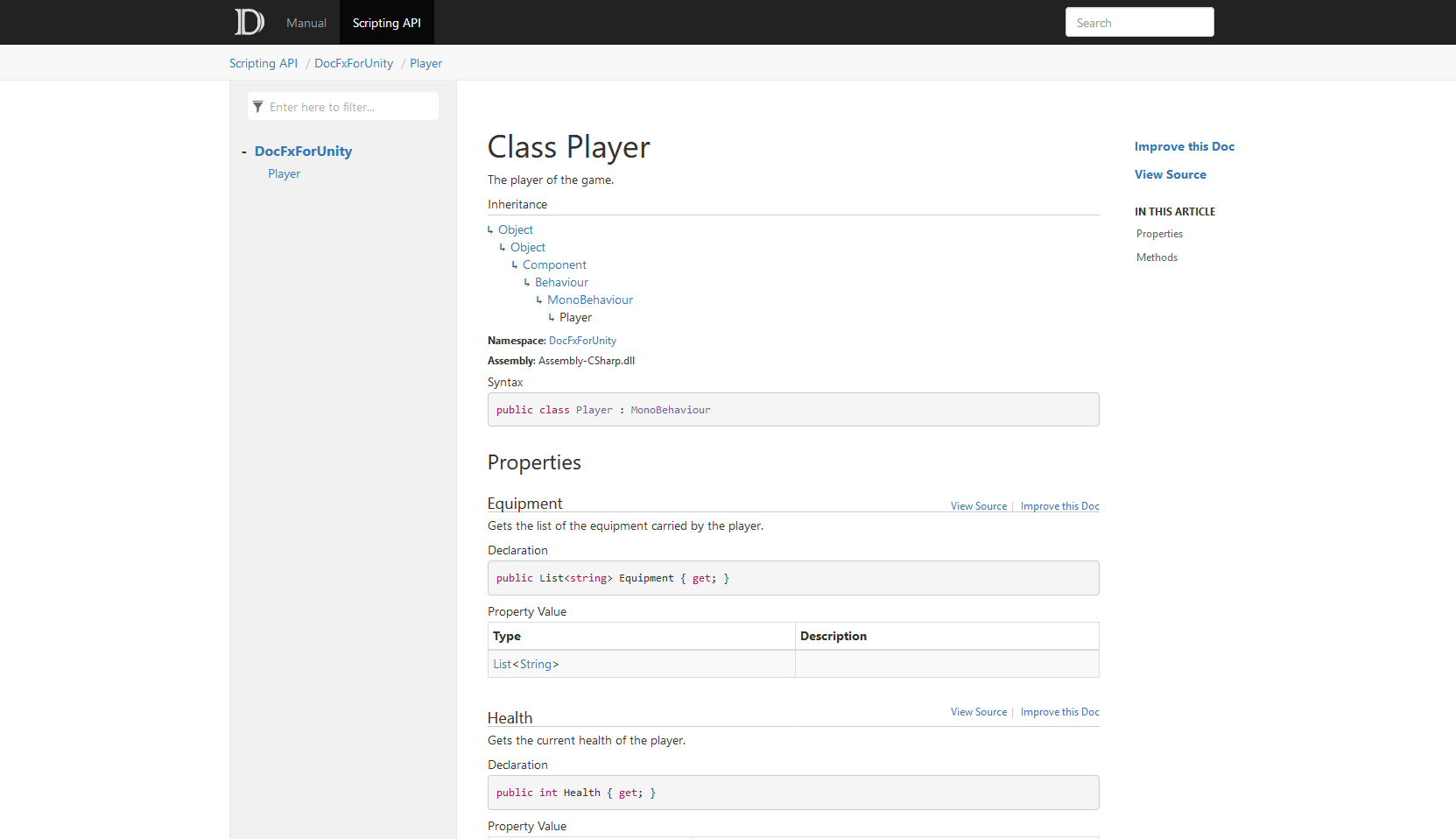
DocFX tool generates a clean documentation that looks like the Unity documentation with a manual (written in Markdown) and a scripting API (from the C# scripts of the project).
This repository contains a simple Unity example project which documentation is automatically generated and deployed online: https://normanderwan.github.io/DocFxForUnity/. It references both C# API and Unity API.
| DocFxForUnity documentation manual |
|---|
 |
| DocFxForUnity documentation scripting API |
|---|
 |
Compatibility
Every combination below is built by the CI workflow on each change.
| DocFX | Unity 6000.3 (6.3 LTS) | Unity 6000.6 (6.6) |
|---|---|---|
| 2.60.0 (unsupported, see below) | ✓ | |
| 2.64.0 | ✓ | |
| 2.77.0 | ✓ | |
| 2.81.0 | ✓ | ✓ |
- Use DocFX 2.64 or later, with the .NET SDK 8.0 or later.
- Since DocFX 2.62, a C# compilation error stops the build. DocFX must therefore find the Unity managed DLLs, see Troubleshooting. DocFX 2.60 and 2.61 build without them with only warnings, and emit pages with no link to the Unity API.
- Unity 6000.3 is the version of this example project. The CI also builds against Unity 6000.6 with its own xref map, see Reference another Unity version.
Setup your documentation
Install the .NET SDK 8.0 or later, then DocFX:
dotnet tool update -g docfxCopy the
Documentation/folder to your Unity project:. ├── Assets + ├── Documentation ├── Package ├── ProjectSettings └── README.mdYou can rename
Documentation/DocFxForUnity.csprojto match your project — just update the filename inDocumentation/docfx.jsonundermetadata[0].src[0].filesaccordingly.Edit the following properties in
Documentation/docfx.json, keep the others as it is:{ "build": { "globalMetadata": // Edit your documentation website info, see: https://dotnet.github.io/docfx/reference/docfx-json-reference.html#predefined-metadata { "_appTitle": "Example Unity documentation", "_appFooter": "Example Unity documentation", "_enableSearch": true }, "sitemap": { "baseUrl": "https://normanderwan.github.io/DocFxForUnity" // The URL of your documentation website } }It's the configuration file of your documentation. See https://dotnet.github.io/docfx/reference/docfx-json-reference.html for more details.
Edit
Documentation/filterConfig.yml:apiRules: - include: # The namespaces to generate uidRegex: ^Your\.Namespace1 type: Namespace - include: uidRegex: ^Your\.Namespace2 type: Namespace - exclude: uidRegex: .* # Every other namespaces are ignored type: NamespaceIt tells DocFX which namespaces you want to generate the documentation. See https://dotnet.github.io/docfx/docs/dotnet-api-docs.html#filter-apis for more details.
Document your classes and methods. See https://learn.microsoft.com/en-us/dotnet/csharp/language-reference/xmldoc/ for more details.
(Optional) Add your manual pages:
- Write a Markdown file for each page in
Documentation/manual/. - Keep a list of these pages on
Documentation/manual/toc.yml.
- Write a Markdown file for each page in
(Optional) Add resources such as images:
- Copy them to
Documentation/resources/. - Reference them on your docs or manual pages.
- See https://dotnet.github.io/docfx/docs/links-and-cross-references.html for more details.
- Copy them to
(Optional) Document your namespaces:
For each namespace, add a
Assets/Scripts/Your/Namespace1/Your.Namespace1.mdfile:--- uid: Your.Namespace1 summary: Description of the Your.Namespace1 namespace. ---See https://dotnet.github.io/docfx/tutorial/intro_overwrite_files.html to know how it works.
Generate your documentation:
On a command line opened on your project, run:
cp README.md Documentation/index.md
docfx Documentation/docfx.json --serve
The generated website will be visible at http://localhost:8080.
If you want to have a more similar look to the Unity documentation, see this UnityFX template for DocFX: https://github.com/code-beans/UnityFX.
Unity package layout
A Unity package has no Assets/ folder. To document one:
Copy the folder as
Documentation~/at the package root: Unity ignores folders whose name ends with~.In
Documentation~/DocFxForUnity.csproj, point the sources to your package scripts:<Compile Include="../Runtime/**/*.cs" />In
Documentation~/docfx.json, point the namespace pages underbuild.overwrite[0].filesto the same folder:"Runtime/**/*.md".Use
Documentation~/instead ofDocumentation/in the commands and CI files.
Generate automatically your documentation
If you're using GitHub:
Copy the
.github/workflows/documentation.ymlworkflow to your Unity project:. + ├── .github + | └── workflows + | └── documentation.yml ├── Assets ├── Documentation ├── Package ├── ProjectSettings └── README.mdThe workflow builds every DocFX and Unity version of the Compatibility table. For your project, keep a single entry in
jobs.build.strategy.matrix.include, withdeploy: trueand your Unity version. TheCheck Unity API linksstep reads_site/api/DocFxForUnity.Player.html: point it to one of your pages, or delete it.Configure the Pages of your repository to use GitHub Actions.
Commit and push on the
mainbranch: your documentation will be built and deployed tohttps://<username>.github.io/<repository>.
The workflow reads the Unity managed DLLs from the public game-ci editor Docker image
unityci/editor:ubuntu-<unity version>-linux-il2cpp-3.2.2. Unity is never activated, so no license is needed.
If you're using GitLab, use the provided
.gitlab-ci.yml. It runs in the same
game-ci image. Set its image to your Unity version. Generated website is pushed to a public/ directory. See the
GitLab Pages documentation for more details.
Troubleshooting / FAQ
DocFX outputs:
Warning:[ExtractMetadata]No project detected for extracting metadata.Solution: Make sure
DocFxForUnity.csproj(or your renamed version) is inside theDocumentation/folder, and that the filename matches the entry inDocumentation/docfx.jsonundermetadata[0].src[0].files.DocFX outputs:
Warning:[ExtractMetadata]No metadata is generated for Assembly-CSharp,Assembly-CSharp-Editor.Solution: Make sure you included your namespace in
Documentation/filterConfig.yml:- include: uidRegex: ^Your\.Namespace1 type: NamespaceDocFX outputs
error CS0246: The type or namespace name 'UnityEngine' could not be found, or MSBuild outputsUnity managed DLLs not found.This means DocFX could not locate Unity's managed DLLs. It looks in three places, in order:
- The
UNITY_MANAGED_PATHenvironment variable (see below). lib/UnityEngine/at the project root (populated automatically by the CI workflow).- The default Unity Hub installation directory for your OS.
If Unity Hub is installed at a non-default location, or you want to target a specific Unity version, set
UNITY_MANAGED_PATH(see Advanced:UNITY_MANAGED_PATHbelow).- The
Reference another Unity version
The links to the Unity API come from the xref map of UnityXrefMaps.
To link to the documentation of your Unity version, change this line on your docfx.json:
"xref": [ "https://normanderwan.github.io/UnityXrefMaps/<version>/xrefmap.yml" ],
where <version> is a Unity version in the form of YYYY.x (e.g. 2022.3, 6000.3, 6000.6).
Advanced: UNITY_MANAGED_PATH
By default, Documentation/DocFxForUnity.csproj auto-detects the Unity managed DLLs from the standard Unity Hub installation directory. Set UNITY_MANAGED_PATH when you need to:
- Use a Unity version installed at a non-default location.
- Pin to a specific version when multiple Unity versions are installed.
- Work without Unity Hub (standalone Unity install).
Point it to the UnityEngine subfolder inside your Unity installation's Managed directory:
| OS | Example path |
|---|---|
| Windows | C:\Program Files\Unity\Hub\Editor\6000.3.26f1\Editor\Data\Managed\UnityEngine |
| macOS | /Applications/Unity/Hub/Editor/6000.3.26f1/Unity.app/Contents/Managed/UnityEngine |
| Linux | ~/Unity/Hub/Editor/6000.3.26f1/Editor/Data/Managed/UnityEngine |
Set it in your shell before running DocFX:
# macOS / Linux
export UNITY_MANAGED_PATH="/Applications/Unity/Hub/Editor/6000.3.26f1/Unity.app/Contents/Managed/UnityEngine"
docfx Documentation/docfx.json --serve
# Windows (PowerShell)
$env:UNITY_MANAGED_PATH = "C:\Program Files\Unity\Hub\Editor\6000.3.26f1\Editor\Data\Managed\UnityEngine"
docfx Documentation/docfx.json --serve
Disclaimer
This repository is not sponsored by or affiliated with Unity Technologies or its affiliates. “Unity” is a trademark or registered trademark of Unity Technologies or its affiliates in the U.S. and elsewhere.